
Canon EOS R5 Camera Settings
Use the instructions below to change the camera settings required for proper communication between the Ortery software and compatible camera.
1. RF Lens Settings
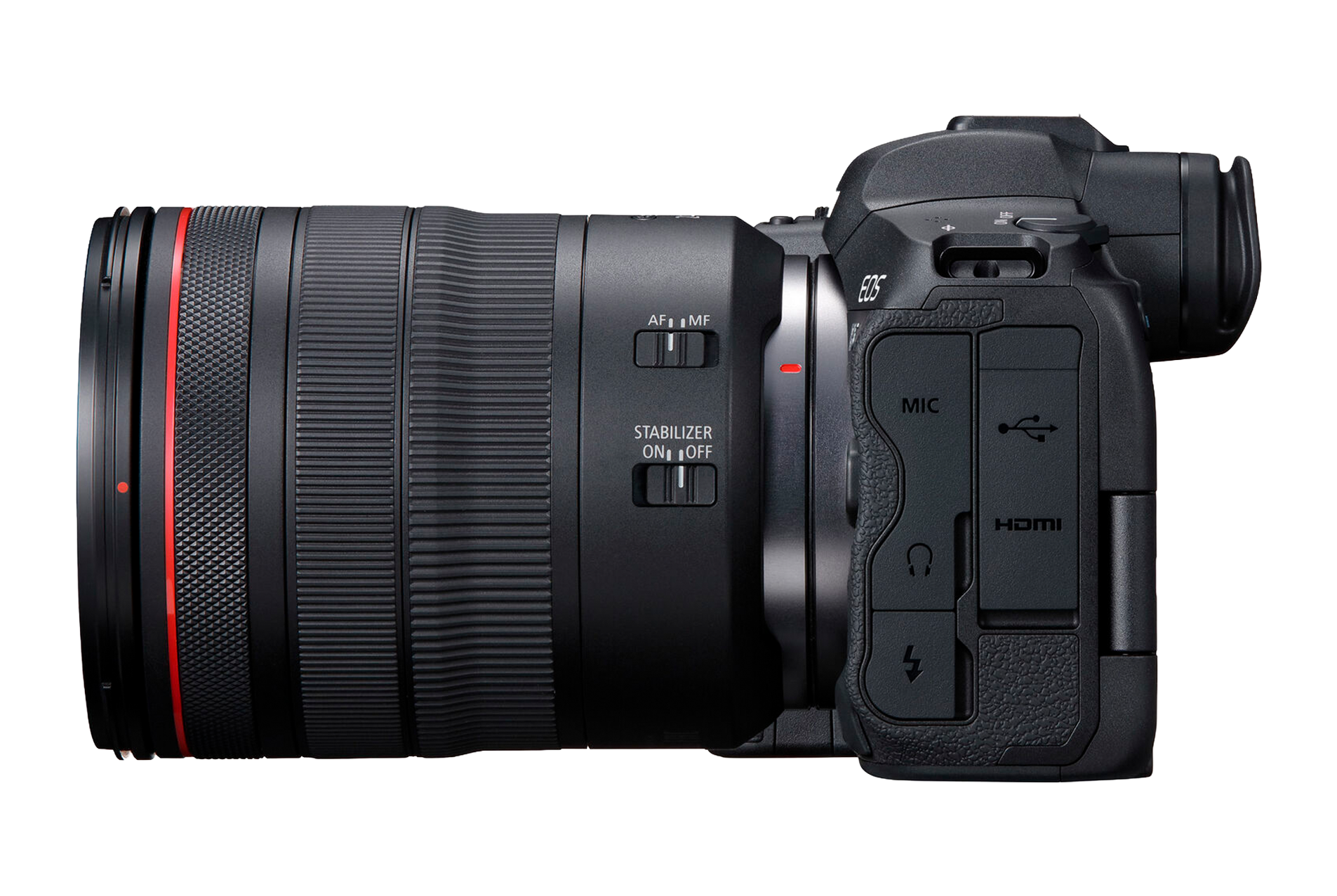
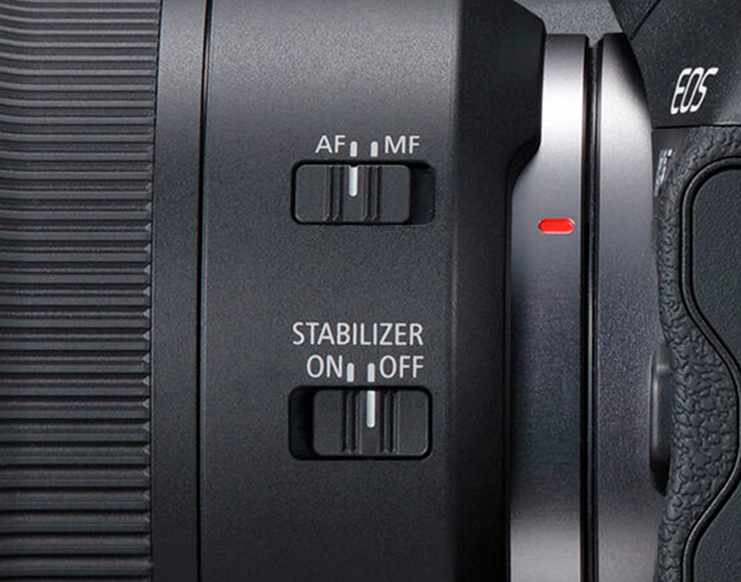
Lens settings for Canon RF 24-50MM F4.5-6.3 IS STM, set:
1. Set Camera Focus toggle to "AF"
2. Set the Image Stabilizer to "OFF." (When using a tripod or mounting it on an Ortery system)
2. Camera Power Source
Instead of batteries, we strongly recommend using an AC power adapter to power the camera while using the Ortery software.
3. R5 Camera Body Settings
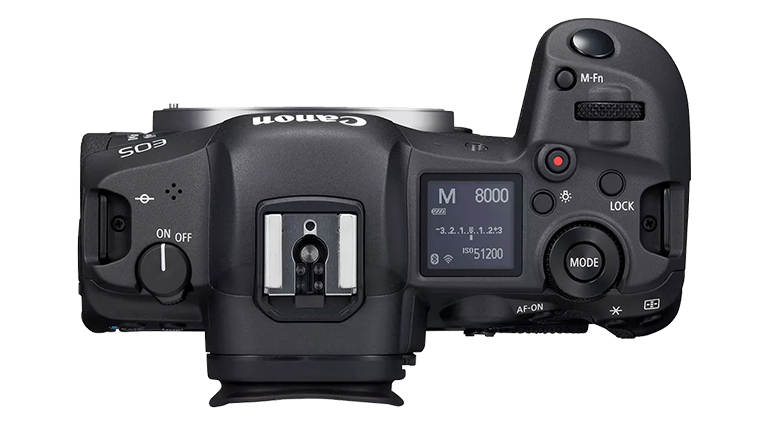
- Press Mode on top of the camera and using the touch screen to navigate to Manual (M).
4. Clear Camera Settings
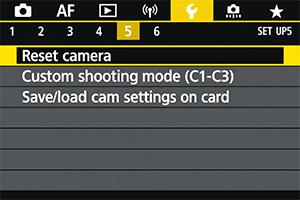
1. Under the 5th submenu in the Set-up menu, select "Reset Camera"
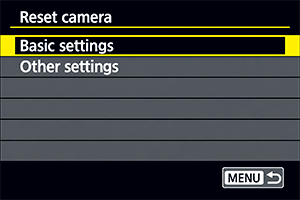
2. The select "Basic Settings"
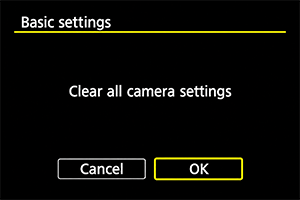
3. Then confirm "Clear all camera settings"
5. Turn Off Power Saving Mode
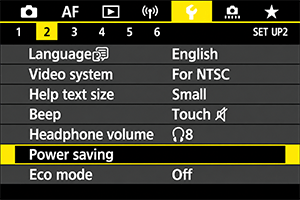
1. Under the 2nd submenu in the Set-up menu, select "Power saving"
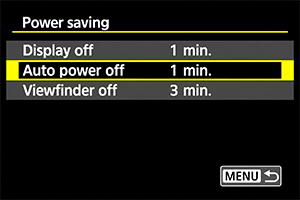
2. Then select "Auto Power Off"
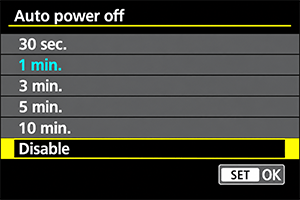
3. Then select "Disable"
6. Disable Auto Rotate
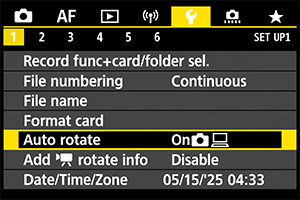
1. Under the 1st submenu in the Set-up menu, select "Auto rotate"
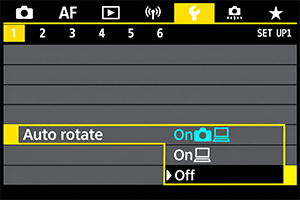
2. Then select "Off"
7. Set Auto Focus
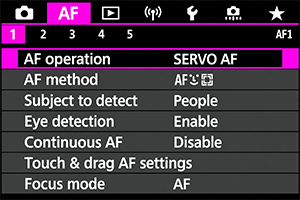
1. Under the AF menu, select "AF Operation"
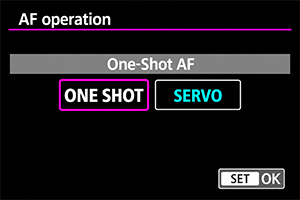
2. Then select "ONE SHOT"
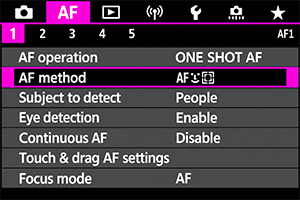
3. Under the first submenu, select "AF method"
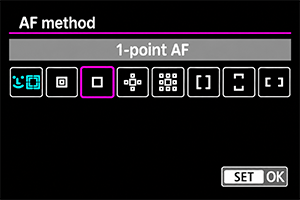
4. Then select "1-point AF"
Set EOS R5 Movie Mode
Note: For video recording with an Ortery device, you will need a camera SD card installed in the camera.
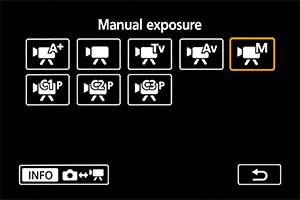
Press MODE > INFO on the camera body
to enter Movie Mode
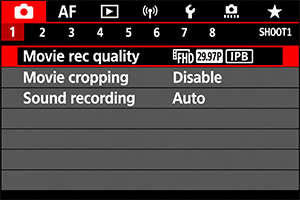
Under the 1st submenu, select "Movie rec. size"
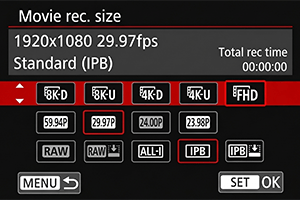
Then select the desired resolution (FHD to 8K)
with the desired frame rate (24 to 60 FPS)
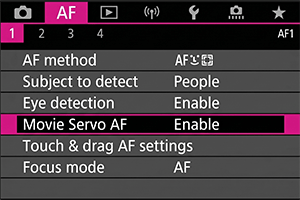
Under the 1st submenu, select "Movie Servo AF"
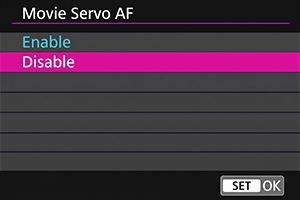
Select "Disable"
Not Sure What You Need?
Let our sales team help you make an informed decision